 Skitchlet
Capture. Mark. Share.
Turn a screenshot into a clear instruction with a capture, an arrow, and a short label. These steps use the free Skitchlet v0.3.0 on Apple Silicon and macOS 14 or later.
Capture the detail
Install Skitchlet in Applications, open it, and leave it running. Press ⌘⇧2 from the app you want to capture. Drag a rectangle around the useful part of one display, then release. The selected image opens in Skitchlet with the Arrow tool selected.
Press Escape before completing the selection to cancel. You can also start from the editor’s Capture button, File → Capture Area…, or the menu bar icon.
The first capture requires macOS Screen Recording permission. If selection does not open, follow the screen capture permission guide. To work with an image you already have, use ⌘O, paste with ⌘V, or drop it onto the canvas.
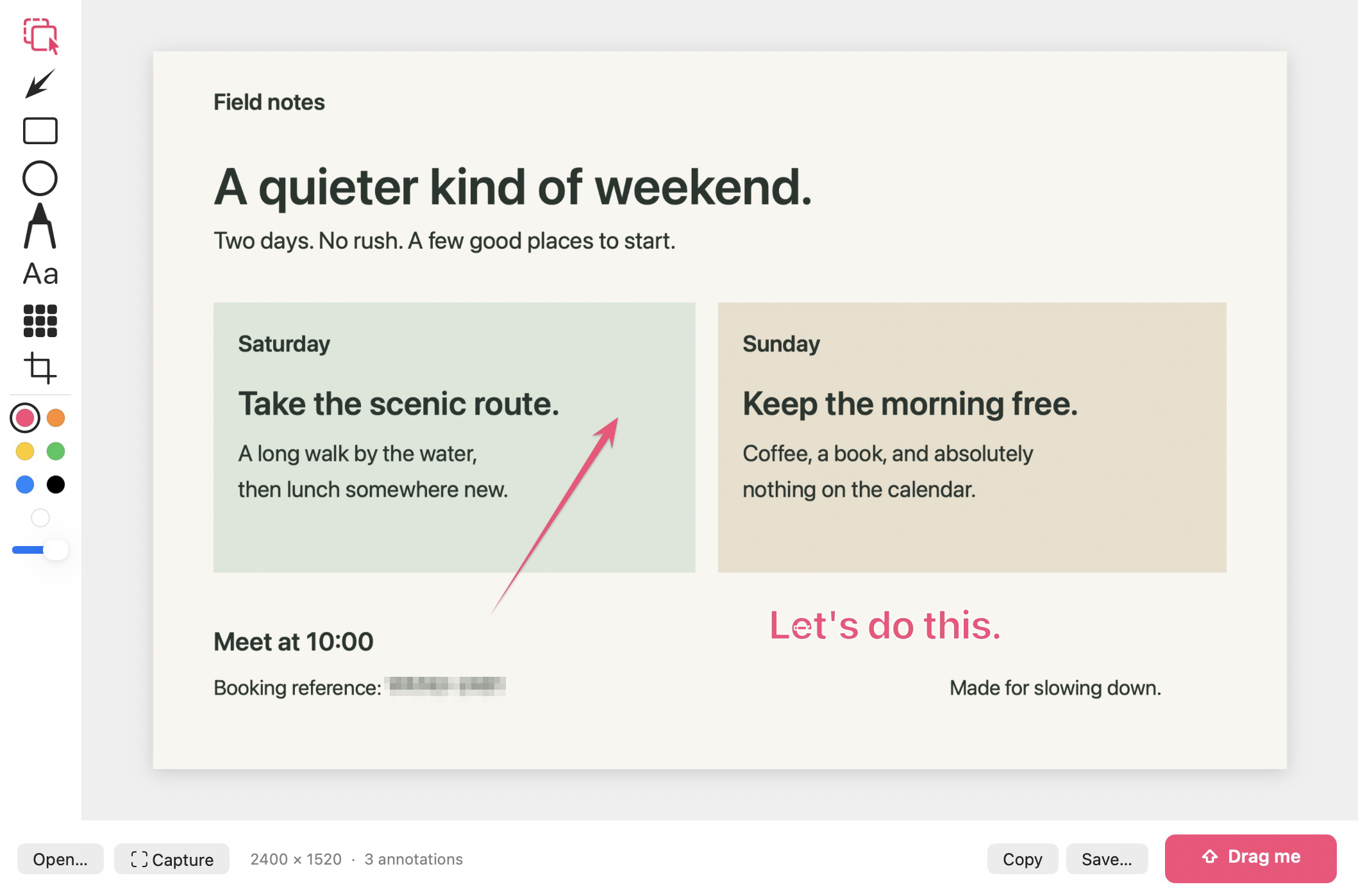
Mark what matters
Choose a tool from the left strip and drag on the image. Keep the first annotation simple: point an arrow at the detail, then add one short instruction.
- Arrow: press A, then drag toward the detail. Hold Shift to constrain its angle.
- Text: press T, click, and type. Return finishes; Shift-Return adds a line; Escape cancels the text edit.
- Shapes: press R for a rectangle or O for an ellipse. Hold Shift for a square or circle.
- Select: press V to move a mark or change its color and thickness. Delete removes the selected mark. ⌘Z undoes an edit.
To change existing text, click it with the Text tool or double-click it with Select and Move. Freehand drawing is available with P.
Crop with C without flattening your annotations. Use Reset Crop to return to the full image, or Undo to step back. Zoom and pan change the view, not the PNG’s pixel dimensions. Choose Solid, Dashed or Dotted for arrows, shapes and freehand strokes. Add Numbered Marker (N), Spotlight (S) or Magnifier (M) to draw attention to a detail.
Opaque Redact (B) covers a region in flattened PNG output. Pixelate (X) remains a visual effect. Original pixels remain in editable drafts/projects, so share an inspected PNG rather than an editable file when concealing information.
Send a PNG
All three export paths create a flattened PNG at the image’s pixel dimensions:
- Copy: press ⌘C or click Copy, then paste into an app that accepts images.
- Save: press ⌘S or click Save and choose a PNG destination.
- Drag: pull the pink Drag me handle into Finder or an app that accepts image files.

Open the exported PNG once before sending it. Check the whole image, confirm the arrow points to the right detail, and make sure you have not included something private. Add any explanation the recipient needs in the message alongside the image.
Read visible text
Choose Edit → Extract Text… to recognize the visible flattened image on your Mac. Crop and redaction are applied first; hidden original pixels are not read. Review the result, then use Copy if you want it on your clipboard. Recognition results can be imperfect.
Keep the version you need
v0.3.0 has one editable image at a time. Local recovery can restore that editor, but export important work before quitting or replacing it. A PNG cannot reopen marks as separate objects. Existing .skitchlet projects open for free; saving editable projects requires Pro and is unavailable in this release. Pin Image keeps a flattened floating reference during the current session; save pins before quitting. Closing the editor keeps the app running; ⌘Q quits it.
For a clearer review request, continue with the screenshot feedback guide. Get the current Mac release.