 Skitchlet
Make feedback clear.
A screenshot works best when the recipient can find the detail, understand the problem, and see the requested change. Here is a small workflow using the tools in Skitchlet v0.3.0.
Keep useful context
Capture the detail and enough surrounding interface to locate it. A close-up of an unnamed button can be hard to act on; a whole desktop can make the same button hard to find. Include the nearby heading or navigation label that identifies the screen.
Use sample content, a test account, or a source image without private information. Move unrelated windows out of the capture area. In Skitchlet, ⌘⇧2 captures one selected area on one display. You can also open an existing image with ⌘O.
Crop in 0.3.0 keeps annotations editable. Reset Crop returns to the full image, and Undo restores an earlier edit. Exported PNGs contain only the visible crop.
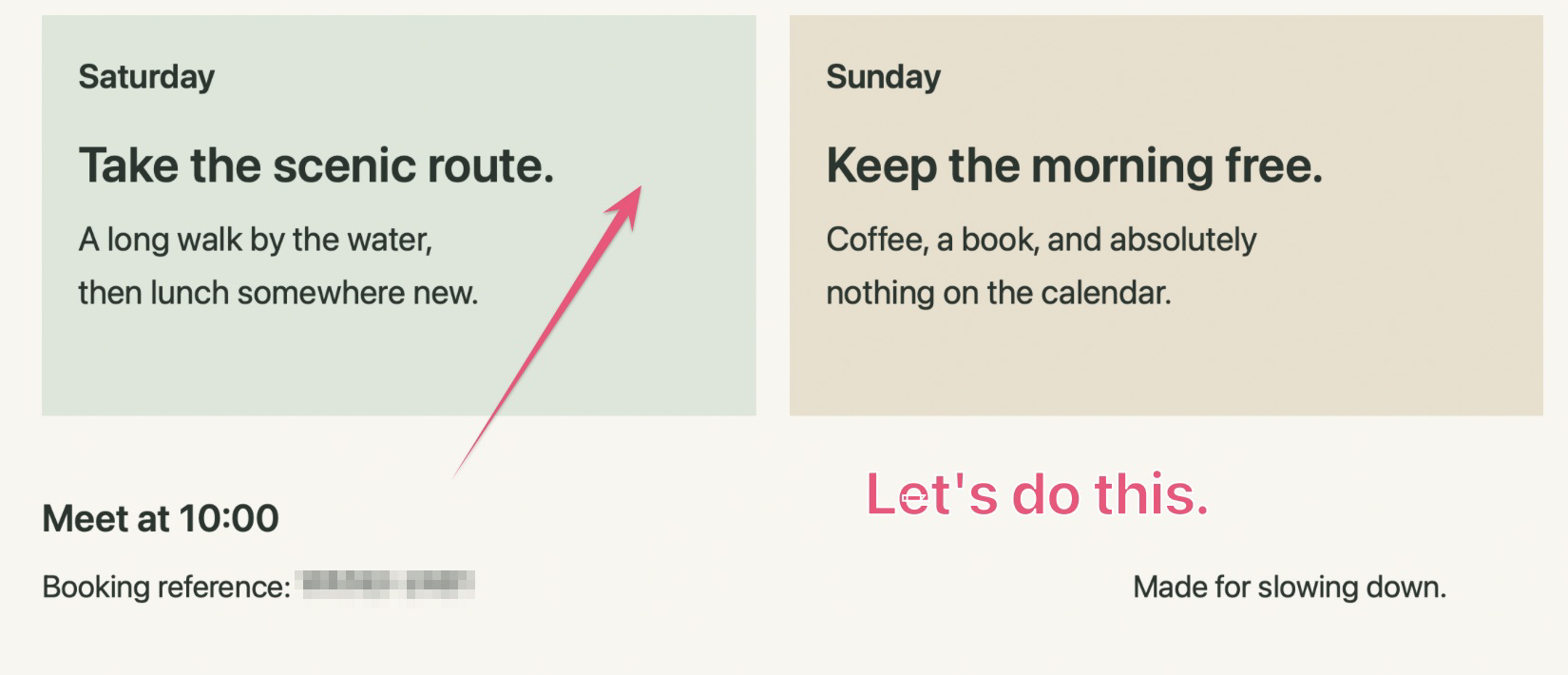
Point. Then be specific.
Start with one arrow. Aim its point at the exact element, not the space between two controls. Add a short text label that names the action or describes the difference.
For example, instead of “Fix this,” write “Align this label with the field above.” For a bug report, put the expected and observed result in the accompanying message: “I expected the form to save. The button stayed disabled after I filled every required field.” These are writing examples, not bugs reported in Skitchlet.
Use A for an arrow, T for a label, and V to move either. If the request needs several independent changes, send separate images or separate messages rather than packing many crossing arrows into one image. This release edits one image at a time.
Keep a sentence outside the image for context that can be searched or copied later: the screen name, steps to reproduce, and the requested next action. The annotation can stay short.
Check the shared image
Copy (⌘C), save a PNG (⌘S), or drag the pink Drag me handle to a destination that accepts image files. Open the resulting PNG and check it at a readable size.
- Can you identify the screen and the exact target?
- Does each label explain a concrete change?
- Are there private details anywhere in the whole image?
- Does the message include any steps or expected behavior the image cannot show?
Pixelation is a visual effect. For opaque black coverage in a PNG, use Redact (B) and inspect the exported result. Editable drafts/projects retain original pixels; do not share those to conceal information. Prefer a sanitized source image whenever possible.
Export the version you need before quitting or replacing the editor image. PNGs are flattened. Draft recovery is local; existing projects open for free, but saving editable projects requires Pro and is unavailable in this release. For the tool-by-tool steps, read the capture and annotation guide.